Can another Mac open the Lock Screen?
 Beam 4 min read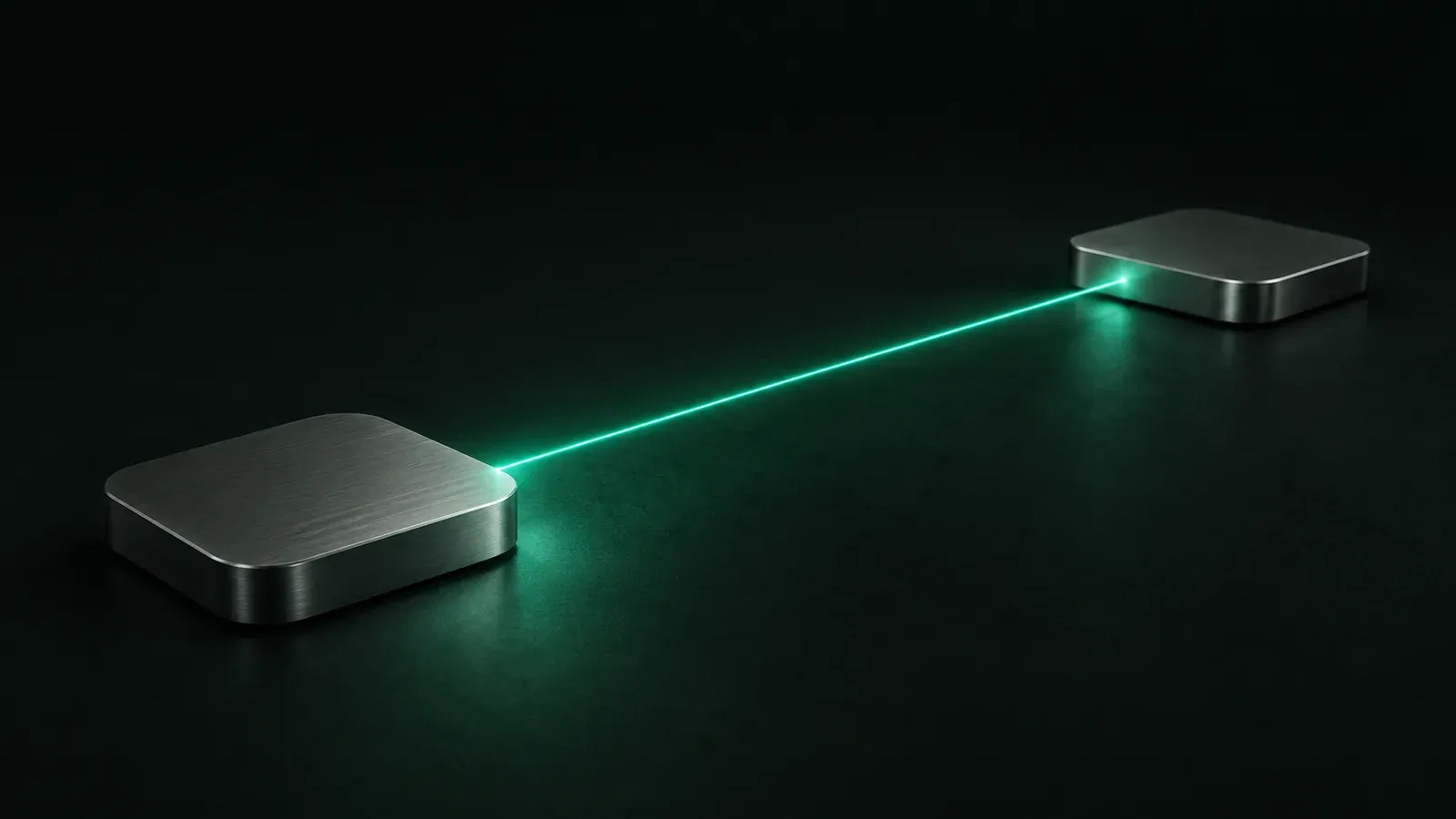
A locked Mac, a sleeping Mac, and a restarted Mac may look equally unavailable from across the room. They are three different states, and only one is an ordinary login-window problem. A normal macOS Lock Screen leaves the user session in place, while sleep affects network reachability and a restart returns the machine to startup.
Prepare trusted access before you leave. Pair both Macs in Beam, grant the required macOS permissions, and keep them reachable on the same local network or through the same Tailscale tailnet. Beam can recognize the normal Lock Screen and send your login password once without storing it.
The Lock Screen may appear after the screen saver starts or the display turns off, depending on your settings. Apple explains how macOS requires the login password after those events. Locking leaves the session available, but it does not prevent a person with physical access from turning off or restarting the machine.
Prepare the route before you leave
Both Macs run Beam on macOS Sonoma or later. Pair them, grant the required permissions, and leave a local-network or tailnet route available. After Beam recognizes the ordinary Lock Screen, you send the login password once, and we do not store it. Begin the test by beaming a window from the other Mac.
Beam puts a window from one Mac onto another: the window itself, on your desktop, at its own size, with its own Dock icon and a place in ⌘ Tab. A beamed window is a live view of the chosen app window. It is not a copy of the full display.
A beamed window can remain visible on the Mac in front of you even while the Mac that owns it is waiting at its Lock Screen. If the ordinary login screen uses an unusual layout, select the whole display so you can handle what macOS presents. Beam shares one window at a time, or a whole display when you pick one.
A nearby configured Apple Watch is a better choice for routine access while you are beside the machine. Apple still requires the Mac password manually for the first login after startup, restart, or logout. A phone is not part of this prepared two-Mac route.
Keep the route private and reachable
On the same network, Beam discovers other Macs running Beam locally, without asking anything outside the network. Pair them once and the connection is encrypted and pinned to those two machines. When the Macs are apart, a Tailscale tailnet gives devices you approve a private network in common. Tailscale may provide a direct or relayed path.
Both Macs run Beam. They talk directly over the local network, or over your Tailscale tailnet when apart.
Beam has no account, server, or cloud service of its own. When you beam a window, the picture, your keyboard and mouse input, and the clipboard if you have clipboard sync on, go straight from one of your Macs to the other. Beam’s direct connection and limited network footprint explain the boundary in more detail.
The Mac that owns the window needs macOS Screen Recording and Accessibility permission, plus clipboard and local-network permission when those capabilities are used. We run no analytics or telemetry in Beam. When you choose to create diagnostics, we place the zip file on your Desktop, and you decide whether to attach it to an email.
The picture is streamed at your display’s exact resolution, so text stays crisp. A headless Mac gets a virtual display from Beam at Retina density.
Run the full check before departure
People who keep several Macs out of reach learn to test the state that follows a reboot, not merely the window open now. Run this sequence while you can still touch the other Mac:
- Confirm that both Macs run macOS Sonoma or later, have Beam installed, and are paired. Verify Screen Recording and Accessibility permission on the Mac doing the sharing. Check clipboard and local-network permission if you use those capabilities.
- Beam a window and inspect its text at the size you plan to use. The exact-resolution picture should stay crisp.
- Lock the other Mac. Confirm that Beam identifies the lock, keeps its windows visible, and accepts a one-time password send without storing it. Select the whole display if the ordinary login screen has an unusual layout.
- Confirm that the two Macs reach each other on the route you plan to use: the same local network or the same tailnet.
- Turn on Wake for network access and, on a laptop, keep it on power. Beam can wake a sleeping Mac from another Mac on the same network; over Tailscale alone it stays asleep.
- Identify the credential screen you will face. A screen locked through Apple Remote Desktop requires that administrator app. An MDM lock restarts the Mac and requires its management PIN. FileVault normally requires credentials during boot; Apple also describes a specialized SSH route for Apple-silicon Macs running macOS 26 or later when its stated Remote Login and network conditions are met.
Reboot the far computer and record which credential prompt appears. Before moving it out of reach, verify the separate startup or FileVault route required for that state.
More from the blog
-
Frame rate or sharpness: Beam chooses for you
Beam automatically keeps text sharp while a window is still and motion smooth when video, animation, or scrolling starts.
-
Which Mac apps share one window?
FaceTime, Zoom, Teams, Meet, Slack, Webex and Discord share one Mac window. See when a cropped region or a beamed window fits better.
-
Use one Mac app without sharing the whole desktop
Beam puts one app window from another Mac on your desktop, with direct input, crisp text, optional audio, and no whole-desktop viewer.